 Omnissa/VMware Client Installation Instructions
Fort Collins, CO 80523
cvmbs.colostate.edu
November 21st, 2025
Installation Instructions
To use StringSoft on personal devices or non-Windows operating systems you will need to install the Omnissa Horizon client by following the instructions below:
1. Click the link below to download the Omnissa Horizon client, make sure to choose the appropriate version for your operating system (Windows, MacOS)
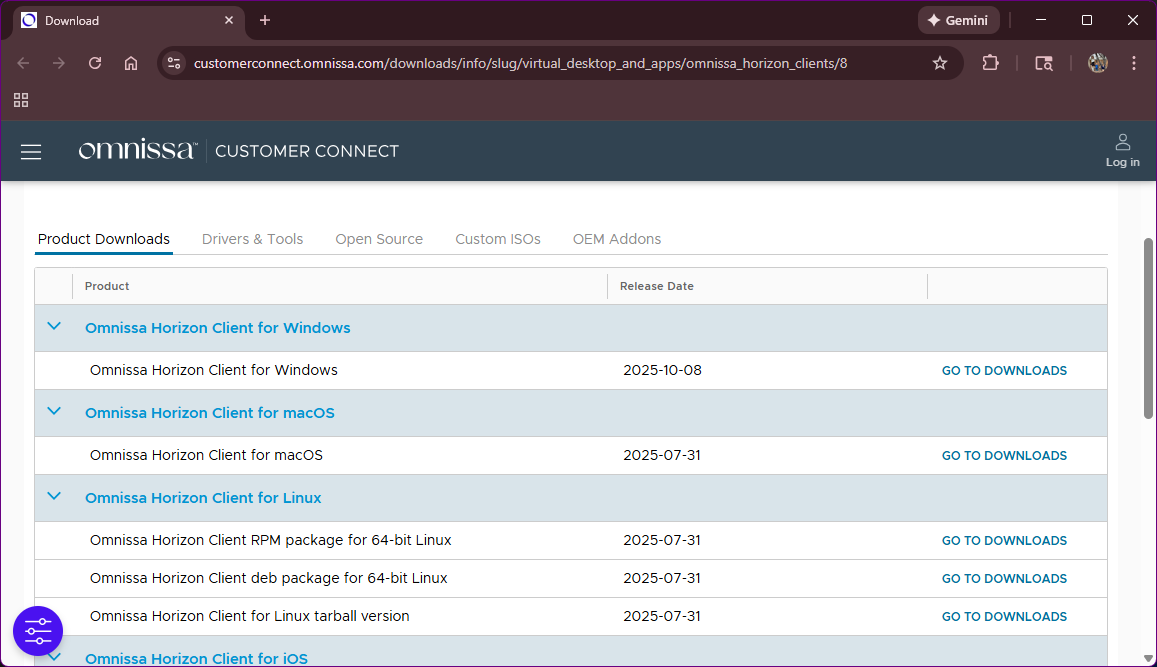
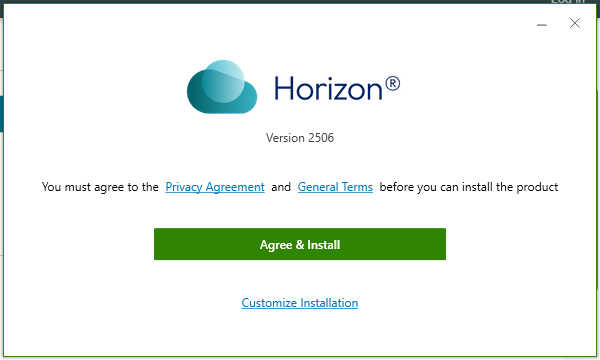
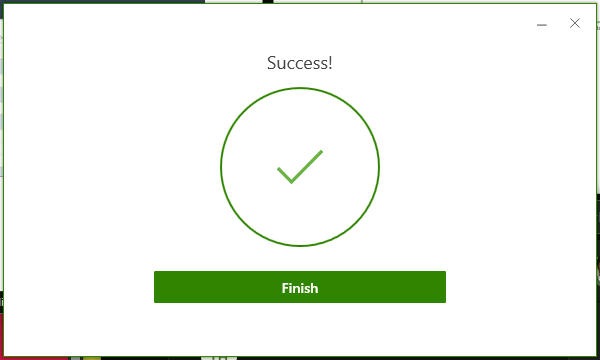
2. Once the software is downloaded, start the installation by clicking Agree & Install and Finish once the software has completed.
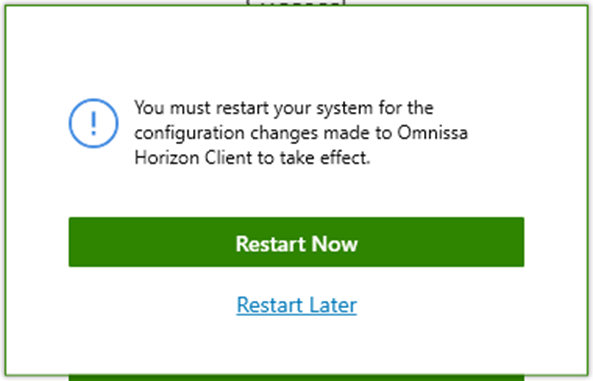
3. The installation will recommend the computer restarts before all changes take effect.
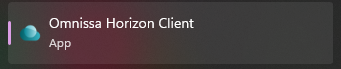
4. Open the Omnissa Horizon Client from your Start Menu or from the Desktop Shortcut
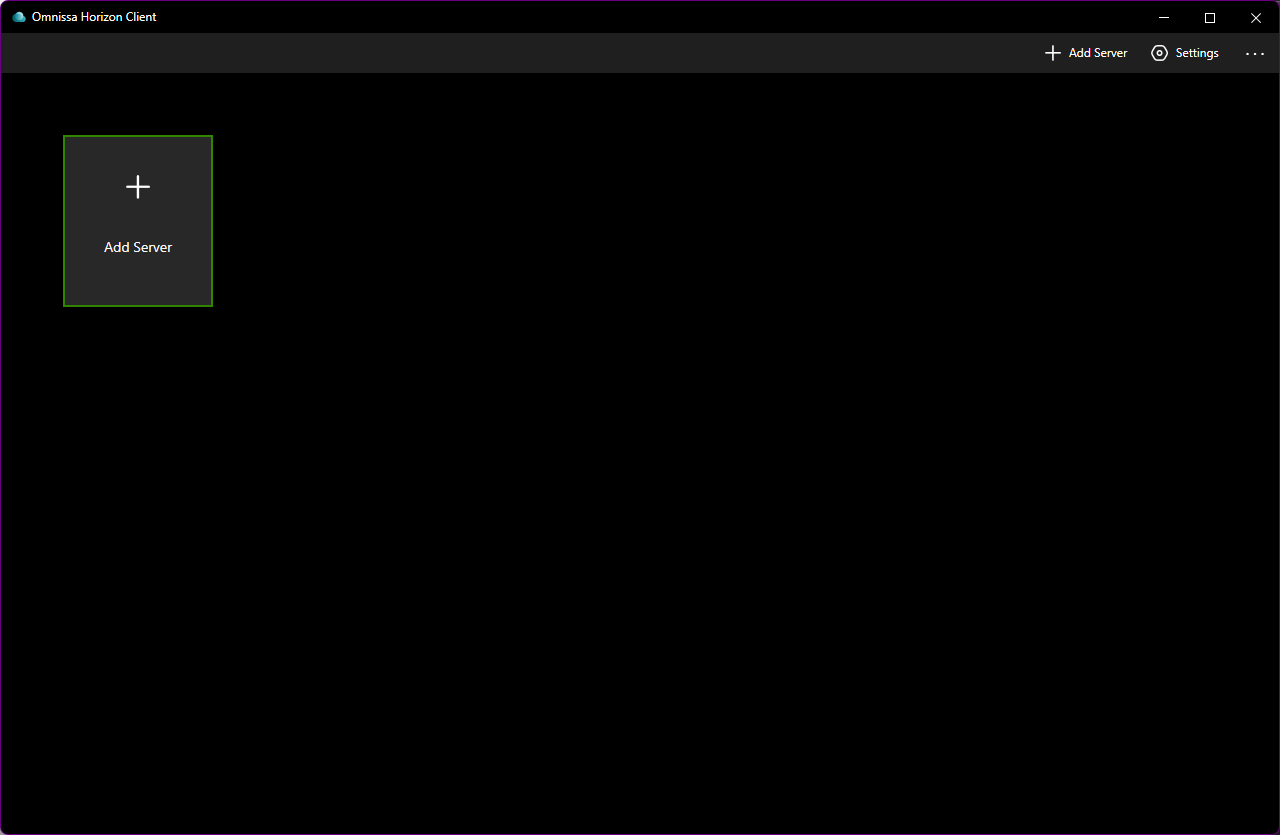
5. Once the Omnissa Horizon client opens click on the “+” to add a server address.
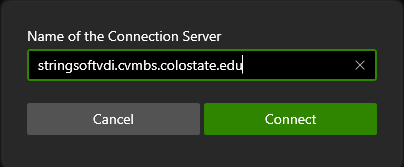
6. Type in the server address: stringsoftvdi.cvmbs.colostate.edu and click on “Connect.”
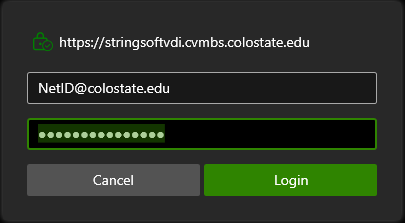
7. When asked to type in credentials to access the StringSoft server, type in your NetID@colostate.edu (Make sure to use your unique NetID for the username) username and your NetID password into the fields below and click on “Login”:
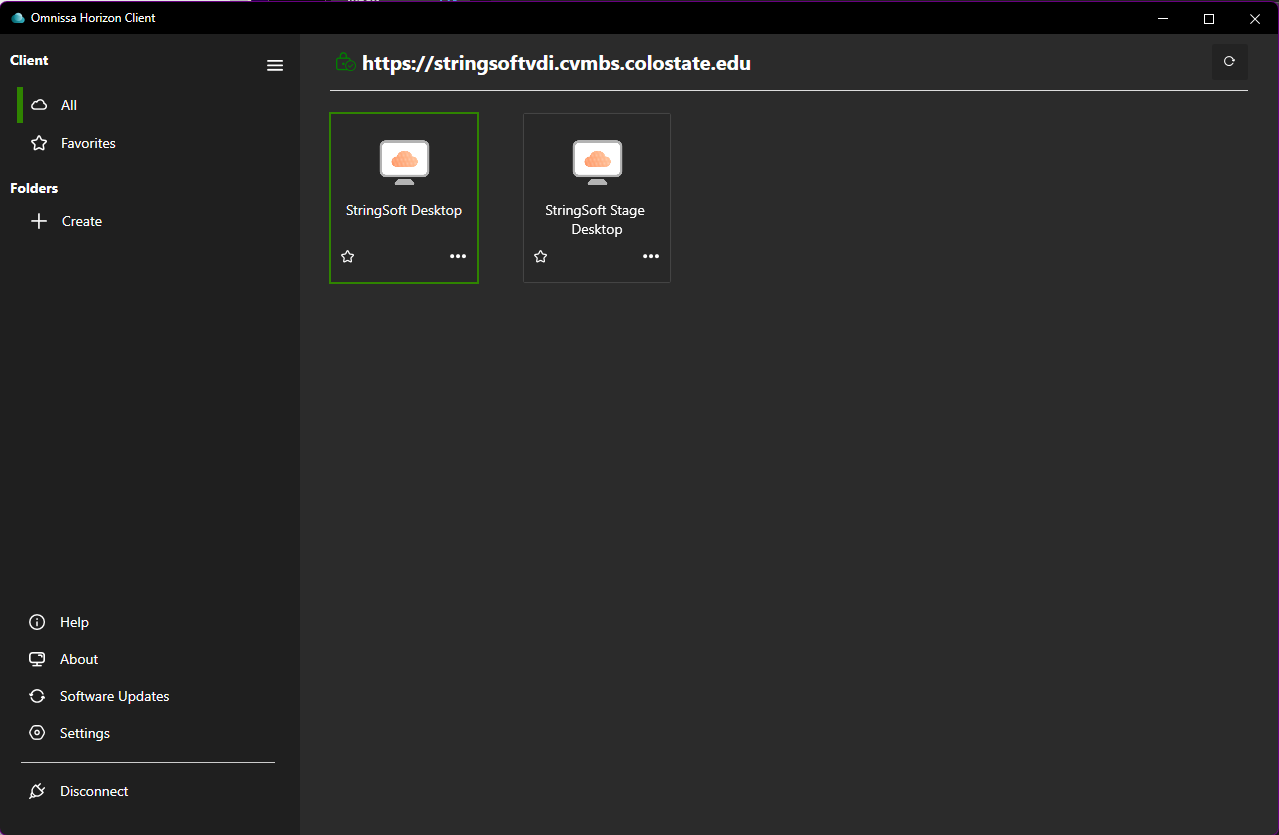
8. Once connected, click on "StringSoft Desktop" to connect to the StringSoft Application.
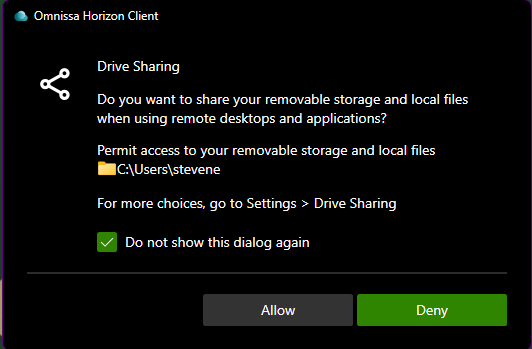
9. When first connecting you will be asked if you would like to allow permissions for Omnissa client to connect to your computer. Click on “Do not show this dialog again” and select either Allow or Deny to access your local files.
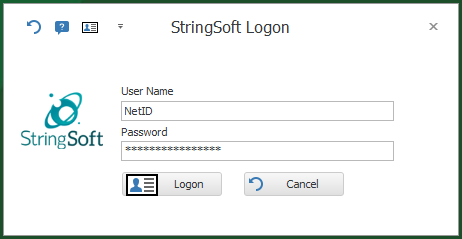
10. Type in your NetID and NetID Password onto the StringSoft Logon screen to be granted access to the application.
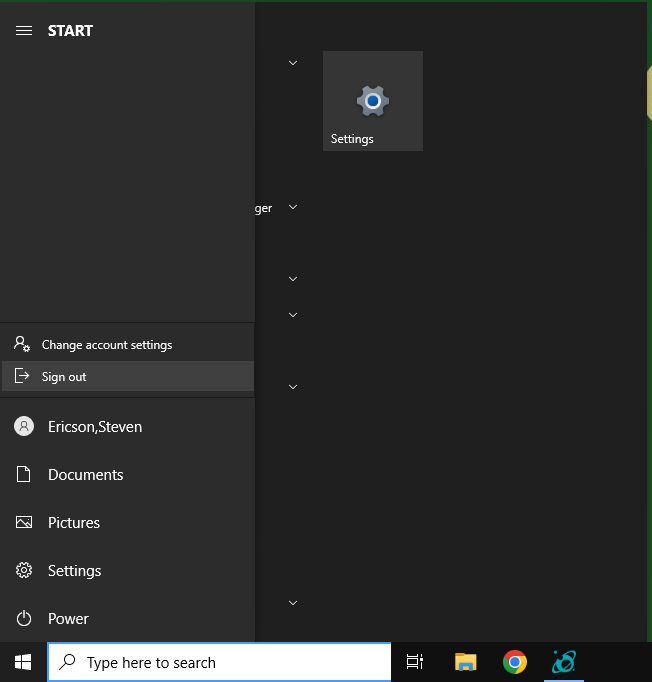
11. When you have completed using the StringSoft application, close out of any open running windows and logout of the server by clicking on the Start button, selecting your name in the top left column and selecting “Sign Out."
Was this article helpful?
That’s Great!
Thank you for your feedback
Sorry! We couldn't be helpful
Thank you for your feedback
Feedback sent
We appreciate your effort and will try to fix the article